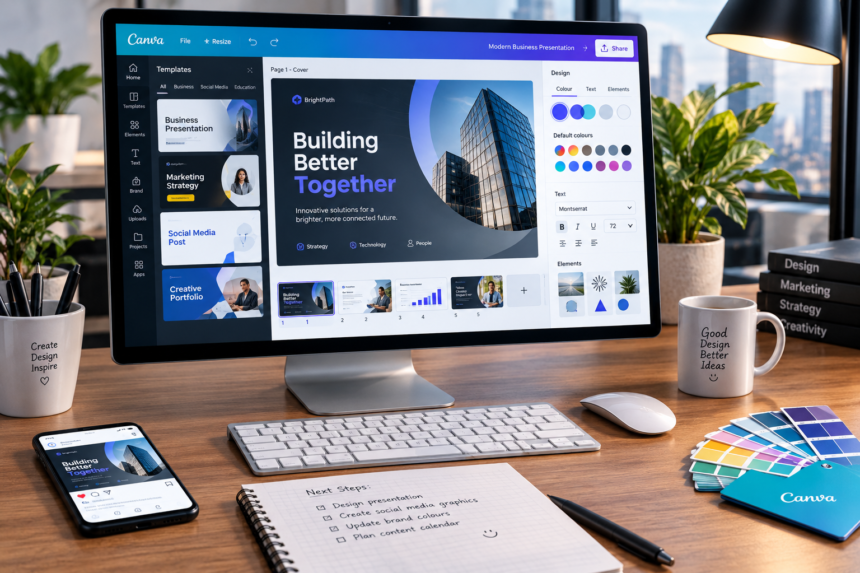
Canva is built for people who want to create polished visual content without learning a complex professional design suite first. This Canva tutorial explains the basic workflow, from choosing a design format and template to editing text, images, graphics, and exporting the finished project. It also covers practical design habits that help beginners avoid cluttered or inconsistent results.
What Is Canva Used For?
Canva is an online visual design platform used for social media graphics, presentations, videos, documents, print materials, charts, and other creative projects. Its editor uses templates, drag-and-drop controls, searchable assets, and editable layouts, making it accessible to people with little or no formal design experience. Canva also provides mobile and desktop access, so projects can be worked on across different devices.
For a beginner, the biggest advantage is not simply the number of templates. It is the ability to start with an established layout and then make focused changes instead of building every element from a blank canvas.
Start With the Right Design
A good Canva tutorial should begin with one simple rule: decide what you are making before you start decorating it.
Think about the final destination first. A presentation, Instagram post, flyer, YouTube thumbnail, and business document need different dimensions and visual priorities. Canva provides ready-made formats and templates, which can reduce the setup work.
Once you choose a format, search for a template close to your intended result. Canva’s current Design School training teaches beginners how to find projects, templates, and other tools from the homepage before moving into customization.
| Project | Useful starting point | Main design priority |
|---|---|---|
| Social post | Square or platform template | Clear headline and visual focus |
| Presentation | Presentation template | Readability and consistent layouts |
| Flyer | Print or poster format | Strong hierarchy and essential details |
| Thumbnail | Video thumbnail format | Bold subject and limited text |
| Business graphic | Brand-oriented template | Consistent fonts and colours |
Do not feel obligated to keep every part of a template. Treat it as a starting framework. Remove elements that do not support the message and replace them with content that does.
How to Customize a Canva Design
After selecting a template, work through the design in layers rather than changing everything at once. A focused Canva tutorial should teach the reasoning behind each change, not just where to find individual buttons.
1. Edit the Text
Start with the headline, supporting copy, and calls to action. Keep the most important message visually dominant. A short headline is usually easier to scan than several lines of competing text.
Choose fonts that are easy to read. Two complementary typefaces can be enough for many projects. Using too many fonts can make an otherwise clean layout feel disorganized.
2. Replace Images and Graphics
Use Canva’s search tools to find photos, illustrations, shapes, icons, and other elements. Its beginner Design School course specifically covers searching for templates, elements, photos, videos, apps, and fonts.
Replace placeholder images with visuals that actually support the subject. Avoid adding decorative graphics simply because an empty space is available.
3. Adjust Colour and Spacing
Colour should create hierarchy, not noise. Choose a small palette and repeat it consistently. Then check the space around headings, images, and important details.
Spacing is often the difference between a design that feels professional and one that feels crowded. If several elements are fighting for attention, remove or simplify something before adding another effect.
💡 Pro Tip
Finish the first version before chasing small visual details. Zoom out and ask what the eye notices first, second, and third. If the order is unclear, improve the hierarchy rather than adding more decoration.
Useful Canva Features for Beginners
Canva’s current Visual Suite extends beyond static graphics. Its Design School describes workflows involving Docs, Whiteboards, Presentations, Videos, Sheets, and other formats, while beginner lessons also cover photo editing, elements, typography, sharing, collaboration, and downloads.
This makes the platform useful for projects that contain several connected pieces. For example, a small business might create a presentation, social graphics, and supporting documents while keeping a similar visual language across them.
Canva’s free offering also includes templates, media assets, a drag-and-drop editor, collaboration, and options for sharing or downloading designs, although available content and features can vary by plan.
A practical Canva tutorial can also help users understand when to keep things simple. You do not need every available effect, animation, or graphic for every project.
Common Beginner Mistakes
A useful Canva tutorial should explain what not to do as well as what to click.
The first mistake is overcrowding. Adding more icons, colours, shadows, and text does not automatically make a design stronger.
The second is inconsistent typography. Switching fonts repeatedly can weaken the visual identity of a project.
The third is ignoring the final viewing context. A graphic that looks fine while zoomed in on a desktop may become difficult to read on a phone.
Another common problem is editing a template so heavily that its original structure becomes confusing. If the layout stops working, it can be better to choose a different starting template than keep forcing the same one.
📌 Key Takeaway
The most useful Canva tutorial is less about memorizing every button and more about learning a repeatable workflow: choose the right format, start with a suitable layout, simplify the content, maintain visual hierarchy, check the design at its intended size, and export it in the format the project requires.
Frequently Asked Questions
Is Canva easy for beginners?
Yes. Canva is designed to make visual creation accessible without requiring advanced graphic-design software knowledge. Its official Canva Essentials course is marked as beginner level and covers navigation, templates, text, images, elements, sharing, and downloads.
Can I learn Canva for free?
You can begin with Canva’s free offering and use its beginner learning resources. Canva also provides Design School courses and lessons, including a beginner Canva Essentials course. Some advanced features and content may require a paid plan.
What should I learn first in Canva?
Start with the editor, templates, text formatting, image placement, basic spacing, colour choices, and exporting. Once those fundamentals feel comfortable, move into more specialized features.
Can I use Canva on a phone?
Yes. Canva provides a mobile app alongside its desktop and web experiences, allowing users to work on designs across devices.
Where can I find official Canva lessons?
Canva Design School provides courses, lessons, videos, activities, and cheatsheets. Its Canva Essentials course currently includes 10 beginner lessons and covers the core workflow from navigation through sharing and downloading.
Conclusion
A practical Canva tutorial should leave you with a process you can reuse, not just a list of tools. Start with the purpose of the design, choose an appropriate format, build around one clear message, and edit templates with restraint. As your confidence grows, explore more advanced tools through Canva’s official Design School and experiment with different formats while keeping readability and consistency at the centre of the work. A good Canva tutorial becomes most useful when these principles turn into a repeatable design habit.