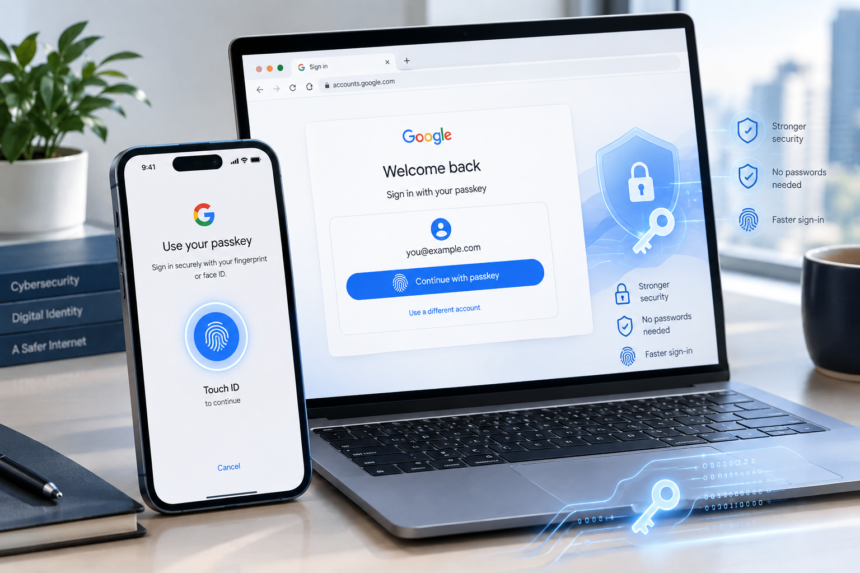
Google passkeys are a password alternative that lets you sign in to a Google Account using a fingerprint, face scan, PIN, pattern, or device screen lock. Instead of asking you to remember and type a password, the account uses a cryptographic credential stored through a supported device or passkey provider. Google says biometric information used for sign-in stays on the device and is not shared with Google.
For people trying to reduce password fatigue without giving up strong account protection, passkeys are becoming an important part of modern authentication. Here is what they are, how they work, how to create one, and what to consider before relying on them.
What Are Google Passkeys?
Google passkeys are credentials based on FIDO authentication standards. A passkey uses a public-and-private key pair rather than a password that can be typed, reused, or copied. The private key remains protected by the device or passkey provider, while the service can use the corresponding public key to verify the sign-in.
That difference matters during phishing attacks. A password can be entered into a convincing fake website. A passkey is tied to the legitimate service and uses cryptographic verification, so the secret itself is not revealed to a phishing page.
Google describes passkeys as an easier alternative to passwords because users can authenticate with the same mechanism they already use to unlock their device. The FIDO Alliance also classifies passkeys as phishing-resistant authentication.
How Do Google Passkeys Work?
When you create a passkey, your device generates a cryptographic key pair for the account. The service stores the public key, while the private key is protected by your device or passkey provider.
During a future login, the website sends a challenge. Your device verifies that you are authorized to use the passkey, typically through biometrics, a PIN, pattern, or screen lock. It then uses the private key to produce a response that the service can verify.
The process happens without sending your fingerprint or face data to Google. In practical terms, the biometric check unlocks the credential; it is not itself sent to the account provider.
| Authentication method | What the user provides | Main security characteristic |
|---|---|---|
| Password | Memorized secret | Can be guessed, reused, or phished |
| SMS code | One-time code | Can still be entered into a phishing site |
| Authenticator code | Time-based code | Stronger than passwords but can be phished |
| Passkey | Device unlock or security key | Cryptographic and phishing-resistant |
How to Set Up Google Passkeys
Creating a passkey is generally straightforward if your device, browser, and account support the feature.
- Sign in to your Google Account.
- Open the account’s security settings and look for passkeys.
- Choose the option to create or add a passkey.
- Follow the device prompt and verify your identity with your fingerprint, face scan, PIN, pattern, or screen lock.
- Confirm that the new credential appears in your account’s passkey management area.
The exact screens can change as Google updates its account interface, so follow the prompts shown on your current device rather than relying on an older tutorial.
💡 Pro Tip
Create passkeys on devices you personally control, keep your device’s screen lock enabled, and maintain a sensible account-recovery method. A passkey reduces password-related risk, but losing access to your devices still requires a recovery plan.
Are Google Passkeys Safer Than Passwords?
For phishing resistance, passkeys have a significant architectural advantage. A password is a reusable secret that can be captured, reused elsewhere, or exposed in a breach. Passkeys use public-key cryptography and are bound to the service for which they were created.
FIDO says passkeys are designed to resist phishing and credential-stuffing attacks. Google likewise says passkeys cannot be guessed or reused like passwords. This does not mean every account-security problem disappears. Device theft, compromised devices, weak recovery processes, and poor account-management practices can still create risks.
Another benefit is convenience. There is no password to remember or type, and the sign-in experience can often be completed with a familiar device-unlock action.
What Happens If You Lose Your Device?
This is one of the most practical questions about passkeys. The answer depends on how the passkey is stored.
Synced passkeys can be available across devices through supported passkey providers. Device-bound passkeys, including some hardware security-key credentials, are tied more closely to a particular device.
That makes account recovery and device replacement important. Google notes that adding a passkey does not remove existing authentication or recovery factors from a Google Account. Users should review those recovery options rather than assuming a passkey is their only route back into the account.
Google Passkeys on Phones and Computers
Passkeys are designed to work across major operating systems, browsers, and passkey providers. A phone can therefore be used to authenticate to a website on another device in supported cross-device flows, while a computer can use its own built-in authentication capabilities.
The exact experience depends on the operating system, browser, account settings, and passkey provider. Compatibility is broad, but users should still keep software updated and understand which device or credential manager is storing their passkeys.
📌 Key Takeaway
Google passkeys replace reusable passwords with cryptographic credentials that can be unlocked through a device’s biometric or screen-lock mechanism. They can make sign-ins both simpler and more resistant to phishing, but good recovery practices and device security remain essential.
Frequently Asked Questions
Are Google passkeys free?
Yes. Google does not charge a separate fee simply to add a passkey to a Google Account. Availability and the exact setup experience depend on the supported device and account environment.
Can I use a passkey without a fingerprint?
Yes. A supported passkey can often be unlocked with a device PIN, pattern, screen lock, face recognition, or another supported local authentication method. The available choices depend on the device.
Do passkeys replace two-step verification?
A passkey can provide strong authentication and, in some Google Account situations, can satisfy an authentication step that would otherwise require another factor. Google states that a passkey can bypass the second authentication step for accounts using 2-Step Verification because it verifies control of the device. Account settings and security programs can affect the exact behavior.
Are passkeys stored in Google Password Manager?
Google Password Manager can act as a passkey provider and store or sync passkeys on supported devices. Other browsers, operating systems, password managers, and security keys can also serve as passkey providers.
What if a phishing site asks for my passkey?
A properly implemented passkey is designed to be phishing-resistant. You should still verify that you are on the legitimate website before approving a sign-in, especially if you reached the page through an unexpected message or link.
Google passkeys mark a shift away from authentication based on secrets people must remember. Their strongest advantage is not simply that they are convenient; it is that the underlying cryptography changes what an attacker can steal through a fake login page. For users with compatible devices, creating a passkey can be a practical step toward simpler and more resilient account security.